Showing posts with label Gadgets. Show all posts

Sunday, June 24, 2012

Sony Xperia Ion Review: Punching Above Its Weightclass

x-ion1

Short Version:

It’s been a long time since Sony released a smartphone in the U.S. market that had a chance of hitting it off with customers — too many of their recent releases have either been meant for niche markets (the Xperia Play 4G) or were expensive and unlocked (nearly all of these things).
That said, they’re looking to give it another go with the new Xperia ion, and it certainly looks like it could go all the way. It’s the company’s first LTE-enabled phone to land in the United States, it packs an impressive camera, and it’ll only set AT&T customers back $99. What’s not to like?
Read on for all the juicy details.
Features:
  • 4.6-inch 720p Reality Display and Mobile Bravia engine
  • Runs Android 2.3.7 Gingerbread
  • 1.5GHz dual-core Snapdragon S3 processor
  • 1GB of RAM
  • 16GB of onboard storage, can take up to an additional 32GB microSD card
  • NFC
  • 12MP rear-facing camera (records video in 1080p) with Exmor R sensor
  • 1.3MP front-facing camera
  • Runs on AT&T’s 4G LTE and HSPA+ networks
  • MSRP: $99 with a two-year contract, available June 24
Pros:
  • Rock-solid camera
  • Impressive 4.6-inch display
  • Aggressive price point
Cons:
  • Why does this thing run Gingerbread?
  • Finicky capacitive Android buttons
  • Peculiar button placement on the Ion’s side puts form ahead of function

Long Version

Hardware & Design:
Looking at the Ion dead-on doesn’t leave you with much of an impression — the Ion’s face is clad in black, and is dominated by the 4.6-inch Reality Display. A terribly small speaker grill is nestled right along the device’s top edge, and a row of small capacitive Android buttons (more on them later) sit just above the Sony logo on the Ion’s chin.
In short, it’s not much of a looker from the front, and it lacks the quirky characteristics (think the color palette of the Xperia U and the nifty transparent sliver of the Xperia P) that helped some of its recent predecessors stand out in a crowd. Lack of style isn’t my only issue with the device’s face; that row of capacitive buttons took quite a bit of getting used to.
I’m not sure if it’s just because I have weird thumbs or what, but it can be a real struggle at times to register a touch on those buttons. They’re rather small (which doesn’t help things at all), and it often takes a more concerted press than one would expect to make things work the way they should. It may seem like a minor thing to get worked up over, but the effect is cumulative — having to touch the same button two or three times to make the device bend to my will for a few days isn’t too taxing, but it could make for some real headaches for people who actually take a chance and buy the thing.

Things get a little better upon turning the device over, which reveals a similarly understated design. Strangely though, I think this is where the Ion actually shines a bit. A handsome dark metal backplate (that’s sadly prone to attracting smudges) takes up most of the Ion’s rear end and is bound on the top and bottom by a pair of removable plastic caps that hide both a microSD and a micro-SIM slot. The only bit of branding back there is the iconic green Sony orb plopped right above the Xperia logo, and I frankly like it that way.
The other thing to note about the Xperia’s back is that it gently curves to fit your hand, something that helps hide its 11.68mm waistline. That curve coupled with that metallic backplate imbues the Ion with a sturdy, comforting feel in spite of the fact that it weighs in at only 4.9 ounces. That said, I take some issue with the way Sony crafted the sides of the device — the edges were designed in such a way that the power, volume, and camera buttons are mounted at an angle. The buttons themselves aren’t any harder to physically press, but their angled placement means they’re not quite where your fingers expect them to be.
This is especially prominent when trying to use the two-stage camera shutter button — my finger naturally gravitates to the highest point on the edge of the device, which often tricks me into applying pressure exactly where the shutter button isn’t. Again, it may seem like a minor thing to get worked up over (and users may get used to it in time even if I didn’t), but it’s annoying to see how Sony’s sense of aesthetics have made it slightly more difficult to use the phone the way I want to.
Software:
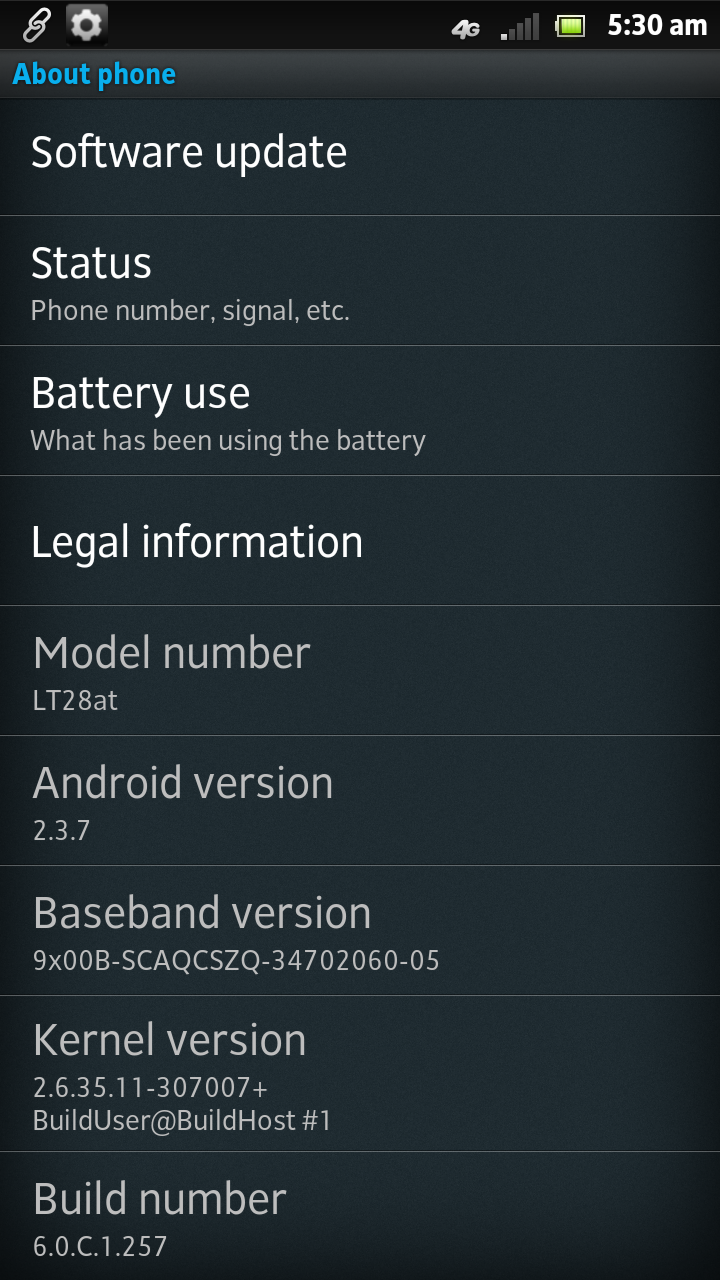
Gingerbread, I wish Sony knew how to quit you.
Perhaps I’m a bit jaded — after having used an Ice Cream Sandwich device as my daily driver for the past few months, going back to a lightly-tweaked take on Android 2.3.7 Gingerbread for nearly a week didn’t seem like a tempting proposition. Sony maintains that the device will gets its Ice Cream Sandwich update in due course (the Xperia S just got its own ICS update a few days ago), but really — it’s the middle of 2012 and Ice Cream Sandwich first hit the scene toward the end of last year.
It may just be one of the pitfalls that needs to be dealt with when mid-range devices are concerned, but I can’t quite shake the feeling that a solid handset isn’t quite living up to its potential because of Sony’s decision on this front.
Anyway, I’m not going to get too caught up in pondering the sort of device the Ion might have been, and Sony has done their part to try and freshen up this stale cookie. Longtime readers may know that I’m no great fan of what manufacturers do to the stock Android experience, but Sony thankfully hasn’t gone too crazy with their custom UI — save for a few particularly heinous widgets (Timescape and the large, love-em-or-hate-em Tools widgets in particular) I actually found myself enjoying some of what Sony came up with.
The app launcher in particular seemed nice and clean, with apps being arranged on multiple horizontal scrolling pages a la Ice Cream Sandwich. What made the whole thing even better was the fact that Sony didn’t completely load the device up with bloatware or plugs for their myriad media services — Sony only preloaded a few apps and at least some of them are rather useful.
Sony’s LiveWare manager app for instance is a scaled down version of Tasker, which prompts user-defined apps to spring to life when accessories like headphones or power cables are connected to the Ion. And just like clockwork, Sony’s Timescape social app makes yet another appearance here. The app pulls in tweets, Foursquare check-ins, Facebook status updates, and LinkedIn updates into a vertical stream of social information that’s at the same time visually striking and super smooth to scroll through. Just do yourself a favor and stay away from the fugly widget.
Of course, since AT&T is selling this thing, you can expect the full complement of carrier bloatware apps to round out the package. All the usual suspects are present and accounted for (I’m looking at you especially, Yellow Pages), but to my great relief, tapping a small grid icon in the bottom right corner of the app launcher lets you delete most of them quickly and without prejudice. Kudos to Sony for making that process dead-simple.
Camera:

One of the Ion’s biggest claims to fame is its 12-megapixel rear-facing camera, which makes the device second only to HTC’s Titan II for the title of “beefiest cameraphone” on AT&T’s store shelves. Thankfully, I’m pleased to report that Sony’s claims aren’t just marketing fluff — this is one of the nicer smartphone cameras I’ve used in quite a while.
But first, let’s address some of the mechanical bits. Holding down the two-stage shutter button while the phone is locked lets users jump straight into the camera app while the device is locked, which sounds great except for one thing — by default the camera app is set to snap a picture as soon as someone uses the shutter button to unlock it. That’s right, it just takes a picture as soon as the phone wakes up, which means that you’ll have no clue how well you’ve framed the shot or if the camera focused on the right subject until it’s too late.
Thankfully all that requires is a quick settings tweak, and the rest of the camera experience is quite solid. The process of auto-focusing and actually snapping a photo was awfully quick — just under three seconds to focus, shoot, and return to standby mode. Once inside the camera app proper, users can select from a number of different scene modes (though the default scene recognition mode is smart enough to accurately handle most situations) and shoot panoramas to boot, but there isn’t much in the way of manual controls outside exposure and metering settings.
Of course, all that would mean nothing if the photos didn’t turn out well. Fortunately, colors were bright and vibrant, though perhaps to the point of being slightly over-saturated at times (more on that in a moment). Low-light performance wasn’t too shabby either, but the Ion’s Exmor R sensor isn’t a miracle worker — there was still quite a bit of grain present in shots taken in darker locales. C’est la vie.
The Ion can also record 1080p video at 30fps, and results were generally quite nice — test recordings displayed plenty of detail, and additional features like image stabilization and the ability to light up the LED flash came in quite handy. The process isn’t entirely flawless though, as the camera tends to take a few extra moments getting into focus when you’re ready to begin shooting.
Now, about that over-saturation issue I was talking about — it’s not entirely the camera’s fault. It’s worth noting that the images look extra vivid on the device itself thanks in part to Sony’s use of their Mobile Bravia engine, and that their level of vibrance will vary once you move those photos onto other devices. And speaking of which…
Display:
Since the Ion is the first Sony smartphone I’ve worked with in a while, I wasn’t quite sure what to expect from its 4.6-inch, 720p Reality Display. As such, seeing the bright, crisp display come to life for the first time was actually a bit of a surprise — sure, it lacks the deep blacks seen on AMOLED displays but the LCD panel Sony’s using is no slouch (especially since at 342 ppi it beats the Galaxy S III and the iPhone 4S at the pixel density game). The display’s viewing angles are actually quite good, though prepare for the colors to wash out a bit the further you move away from dead center.
The screen’s performance in daylight seemed respectable at best. Since Sony doesn’t include an option to automatically set screen brightness, you’ll have to manage that yourself should you decide to venture into the outside world, and the screen tends to get overwhelmed unless brightness is cranked up full blast.
As I’ve mentioned before, Sony’s Mobile Bravia engine plays a significant role in how images and video appear on that sizable screen. With the Bravia option on (note: it’s on by default) colors were vibrant and vivid to the point of being slightly lurid at times — this was especially apparent in one of my test videos, where the Xperia ion tended to make a stage lit mostly in blue take on a notably purple cast.
It wasn’t necessarily a bad change (I actually think it gave the video some cinematic flair), but not everyone may enjoy the effects engine has. In addition to pumping up colors, the Bravia engine also sharpens the image, leading to the double-edged sword of slightly crisper images and video versus the potential annoyance of seeing more jaggies. Occasionally nuclear colors aside, I think leaving the Bravia engine on is generally a plus; it adds a bit of pop to the viewing experience, and it’s simple enough to shut down if it gets to be too much.
For a closer look at the difference, take a look at this image — the left side is a screenshot of a photo I took with the Bravia Engine off, and the right is a screenshot of same image with the Bravia Engine on (click to enlarge).

Performance:
The Ion’s spec sheet would’ve been considered top-tier just last year, but my how times have changed since then. We’ve since entered the age of the quad-core chipset (even though most of them don’t end up on U.S. soil), but the 1.5GHz dual-core Snapdragon S3 processor nestled inside the Ion’s curved frame still has plenty of game. The device seemed plenty responsive when put to the usual gamut of daily tasks — swiping between menus was buttery smooth, as was pulling down the notification drawer and scrolling through my innumerable contacts. Similarly, I had no trouble at all watching Top Gear reruns on Netflix or building obtuse structures in Minecraft Pocket Edition.
If you want to break things down numerically, the Ion managed to squeeze out an average Quadrant score of 2872, which roundly put to shame my trusty Galaxy Nexus (average: 1812). It’s still a long ways off from HTC’s ostensibly mid-range One S (generally around 4-5000 depending on the circumstances), but the Ion certainly has enough horsepower to be a daily driver for all but the most demanding users.
In terms of network performance, I’m loath to admit that I couldn’t latch onto an LTE signal in my particular corner of New Jersey (a problem that I imagine isn’t unique to me considering AT&T’s LTE network is only live in 41 cities), but I managed to pull down an average of 7.3 Mbps down and 1.3 Mbps up. It doesn’t sound great, but the Ion actually performed slightly ahead of other AT&T devices — namely an iPhone 4S and an unlocked Galaxy Nexus — I tested alongside it.
Though one of the Xperia Ion’s main draws is going to be that nifty camera, Sony is positioning it as more than just a media creator — it’s also a media hub. As you might expect from a company that launched the working group behind it, the Ion is DLNA certified, and it was a snap to get it linked up with my DLNA-compatible LG smart television and media server. From there, I was able to fire up the included Connected Devices app and sling my media onto the big screen. Streaming videos from my media server proved to be a breeze too, and it didn’t take long before Plex was serving up (dorky) content to the Ion.
If you’ve got a micro-HDMI-to-HDMI cable handy, you can also connect the Ion directly to your television at which point something very interesting happens. Once the connection is in place, the Xperia swaps its stock launcher for an upscaled version meant to be displayed on a television, allowing users to fire up apps and generally do
Provided you’ve got an HDMI-CEC (or SIMPLINK, or Viera Link, or whatever) compatible television, you’ll also be able to control the Ion with your television remote. The ability to take any compatible television and effectively turn it into a smart television set certainly has its appeal, and while it’s gimmicky and it’s fun, it’s hardly the kind of thing I’d want to use for any extended period of time.
When it comes to sound, the Ion is actually sort of a mixed bag. Call quality was generally very clear, but even with the volume cranked all the way up, I still had trouble hearing the person on the other end of the line. The same goes for the Ion’s main rear-mounted speaker — for a device that’s so centered around media, you would think that Sony would have bothered to pop a better speaker in the thing. Even at maximum volume (which, again, doesn’t seem that loud) the speaker produces sound with muddy middles almost non-existent lows. I’ll admit that I can’t be too surprised as it’s relatively rare to get an unabashedly good speaker in a smartphone, but I was a tad disappointed nonetheless.
Battery:
For better or worse (I usually lean toward the latter), Sony has opted to seal the Ion’s 1900 mAh battery under that black metallic plate I’m so fond of. Though the road warriors among you may miss the ability to swap out spare batteries as needed, the Ion does a fine job of chugging along throughout the day.
Since I started using the Ion as my go-to phone earlier this week, I’ve averaged about eight to nine hours of consistent use each day — checking my email, firing off text messages, watching the same clip of a tap dancing broadway starlet over and and over — you know, my usual routine. If you’re not the sort to check your phone at every possible moment, you can expect to squeeze closer to 13 hours out of the thing before needing to juice up again.
If you’re planning to binge on some video content though, expect that figure to plummet to roughly six hours, and that’s if you’re mighty careful with all the rest of your settings.

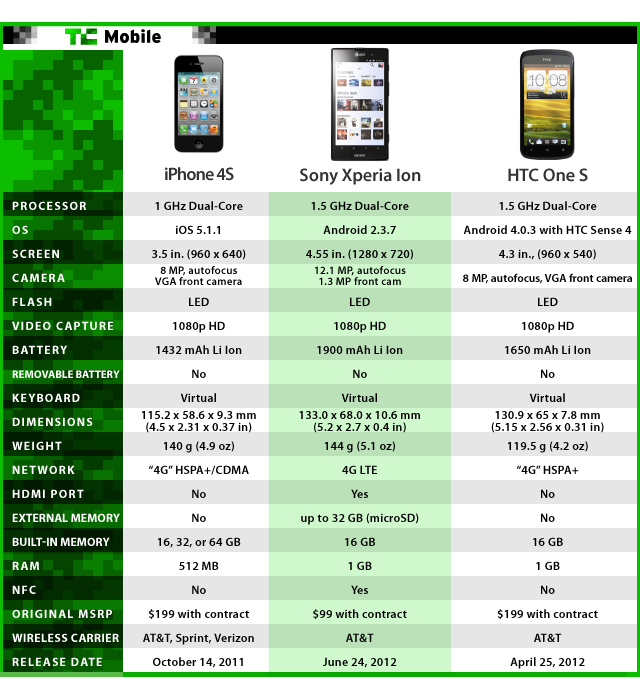
Head-To-Head With The HTC One S And iPhone 4S:

Conclusion:

For all of the Ion’s foibles (and there are quite a few), there’s still plenty to like here. The Xperia Ion definitely leans to the more premium end of the mid-range spectrum, and it tries valiantly to punch above its weight with features like its solid camera, media functionality, and great display. Its price tag too makes a pretty compelling statement — there are far worse things you could get for $99.
Ah, but the real question is whether or not it’s worth your money. I was originally going to say that if you’re in the position where you really can’t justify spending an extra $100 on a top-of-the-line smartphone, then the Ion will do in a pinch. Now that I’ve thought about it a bit more, that’s selling the Ion a bit short.
Despite how harsh I may have been with some of my comments, I really do think the Ion is a good phone. The problem here is that like with many mid-range phones, the Ion straddles that very fine line between “good” and “great,” and it doesn’t seem to have quite enough oomph to push it over the edge. Strangely enough, this may well change down the line — with a few minor tweaks and perhaps a helping of Ice Cream Sandwich, the Xperia Ion may eventually grow to become a must-buy, but it’s not quite there yet.

Tuesday, March 13, 2012

Asus Eee PC 1025C Flare

The good: The Asus Eee PC 1025C Flare has amazing battery life, and is probably the least expensive Windows 7 laptop you'll find.
The bad: Just about everything else is substandard. A machine like this was acceptable a few years ago, but it just doesn't cut it in the post-iPad world.
The bottom line: Asus brought Netbooks into the world, and with the last-gasp Eee PC 1025C Flare, it looks like it's going to take them out as well.
Once upon a time, cheap, tiny laptops ruled the land, acting as travel, backup, and kids' computers to millions, and completely upending what consumers expected to pay for a PC. Those laptops were called Netbooks, and starting in 2007 they exploded out of the gate, first from Asus, then Acer, Hewlett-Packard, Dell, and others. Every laptop maker (save Apple) had to launch one of these $300 machines, and they were a real democratizing force in making basic computing and online access available to nearly everyone.
But, like many hot trends, the Netbook was oversold. The big PC makers struggled to differentiate their mostly identical systems from each other--which is hard to do when no one expects to pay more than $299. Even worse, the stock combination of an Intel Atom CPU, 1GB of RAM, and a 250GB hard drive was fine for very simple tasks, as long as one understood the limitations of the hardware. But too many Netbooks were pitched as replacements for full-price laptops, and consumers ended up disappointed by sluggish performance and tiny keyboards.
The final nail in the Netbook coffin was Apple's iPad, which for $499 did many of the things people wanted their Netbooks for--e-mail, Web surfing, playing videos, gaming--better than a Atom-powered laptop. Since then, we've seen a precipitous decline in the number of Netbooks released, with most companies cutting way down on available models or dropping them altogether.
The last gasp for Netbooks may be the Asus Eee PC 1025C Flare. Asus practically invented the Netbook market, so it's fitting that the company provide the only new Netbook we've seen in more than six months. The most notable change from Netbooks of the past is the use of the new 1.6GHz Intel Atom N2600 dual-core processor, but otherwise it has familiar specs: 1GB of RAM and a slightly bigger 320GB hard drive, for the standard Netbook starting price of $299.
With slightly more expensive (but much more practical) 11-inch ultraportables using Intel's Core i3 or AMD E-450 CPU, and the continued success of the Apple iPad, it's hard to see where a Netbook fits in these days. Yes, the EE PC 1025C's performance may be marginally better than that of some past Netbooks, and the battery life is excellent (because this is such a low-power system). But the era of the $299 Netbook has passed, and even this decent example of the form is unlikely to bring it back, especially as it looks as if zero thought has gone into the physical design of these systems over the past couple of years.

Price as reviewed $299
Processor 1.6GHz Intel Atom N2600
Memory 1GB, 1,333MHz DDR3
Hard drive 320GB 5,400rpm
Chipset Intel NM10
Graphics Intel GMA 3600
Operating system Windows 7 Starter
Dimensions (WD) 10.3x7 inches
Height 0.8 inch to 1.4 inches
Screen size (diagonal) 10.1 inches
System weight / Weight with AC adapter 2.5 pounds / 2.9 pounds
Category Netbook
If the Asus Eee PC 1025C Flare looks familiar, it's because it has the same general shape and styling as most of the Eee PC systems we've reviewed over the last few years. The almost entirely plastic body tapers towards the front, and is propped up in the back by a big six-cell battery.
In previous years, this would have been a very slim laptop. But today, hitting nearly 1.5 inches means you're big and bloated. To be fair, low-cost Netbooks have never been lookers, but we've seen other budget laptops update their styling over the years. At least this is still a lightweight laptop--it's about half a pound less than Dell's XPS 13 ultrabook, for example.
The keyboard and touch pad will be familiar to anyone who has picked up a Netbook before. The Eee PC 1025C's flat-topped, island-style keys look like the keys you'd find on nearly any current laptop, just slightly shrunk down. The difference between the keyboard on a 10.1-inch laptop and on an 11.6-inch laptop is pretty significant, and typing on the Eee PC is closer to typing on an iPad--doable, but not an optimal experience. Fortunately, the Enter, Backspace, left Shift, and Tab keys are big enough to hit easily, but the right Shift key and arrow keys are smaller than usual.
The touch pad is a decent size, given the overall small size of the system, and the sensitivity was cranked up enough by default to get from one end of the screen to the other in a single swipe. Multitouch gestures are, not surprisingly, weak, with a simple two-finger scroll being frustratingly laggy. The touch pad doesn't have a special drag-free surface; instead it's made of the same plastic as the rest of the chassis, and demarcated by a slight indentation in the wrist rest. A single, thin rocker bar below the pad is used for both a right and left button click.
The standard resolution for even the least expensive laptops today is generally 1,366x768 pixels. In that sense, the Eee PC 1025C Flare is a bit of throwback, using the same 1,024x600-pixel screen seen on dozens of Netbooks up through early 2011. It's fine for casual Web browsing and e-mail, but many sites are designed to be read on at least a 13x7-inch display, so excessive scrolling may be required. That said, the matte finish on the screen was welcome. Horizontal off-axis viewing was surprisingly good, while vertical off-axis viewing was terrible.


Asus Eee PC 1025C Flare Average for category [Netbook]
Video VGA plus HDMI VGA
Audio Stereo speakers, combo headphone/microphone jack Stereo speakers, headphone/microphone jacks
Data 3 USB 2.0, SD card reader 3 USB 2.0, SD card reader
Networking Ethernet, 802.11n Wi-Fi Ethernet, 802.11n Wi-Fi, Bluetooth
Optical drive None None
Netbooks offer few surprises in terms of ports and connections, and the only difference between this model and most older Netbooks is the additional of an HDMI port for outputting video to a bigger screen. Bluetooth would have been a nice extra, but there's only so much one can expect for $299.
It's been so long since we tested a Windows 7/Intel Atom laptop that direct comparisons were nearly impossible. But even compared with a Dell business Netbook with an Atom N550 or a Netbook-like Acer system with the very low-end AMD C-50 CPU, the Eee PC 1025C Flare was a slow performer. Web surfing in one or two tabs was fine, but performing any kind of system task, even calling up Windows menus, was painfully slow.
This is pretty much the Netbook performance we remember, but now that people are used to iPads and $399 ultraportable 11-inch laptops, it doesn't seem as acceptable as before. A 720p streaming video played smoothly for the most part, with a few dropped frames, so online video viewing should at least be possible.
Asus also offers a pre-Windows quick-start OS called Express Gate, but we've never found one of these modes to be all that useful, especially as they require learning the ins and outs of a non-Windows OS. Plus, instead of being more responsive, Express Gate was, if anything, more sluggish than the Windows experience.

Friday, January 6, 2012

LG Spectrum expected to arrive January 19


The LG Spectrum will fit in quite nicely with other Verizon smartphones.
The full set of hardware details for the Android-powered LG Spectrum has surfaced ahead of a rumored January 19 launch.
Droid Life has obtained leaked information that shows that Verizon could be readying CES announcements for the successor to the LG Revolution.
Hardware for the Spectrum indicates that it will be the carrier's strongest Android phone to date with a dual-core 1.5GHz processor, 1GB RAM, and a 4.5-inch HD display. Rounding things out are an 8-megapixel camera, 4GB internal storage, a preinstalled 16GB microSD, and 4G LTE connectivity.
In terms of software, the LG Spectrum will run Android 2.3 Gingerbread, but we should see a promise for an Ice Cream Sandwich update. Preloaded apps include HD ESPN Scorecenter, Netflix HD, and tools for editing HD video. These, and many other applications, should look stunning on a massive screen that boasts a 329ppi resolution.


Sunday, December 18, 2011

Voice-controlled Apple TV in the works?

Apple is reportedly working on a TV set that will swap the remote for voice controls.

Apple is reportedly working on a television that will incorporate voice commands and wireless streaming.
Apple executives have discussed their plans with media executives at several companies, including a TV that uses wireless streaming to access programming, movies, and other content, according to a Wall Street Journal report (subscription required). Apple is also working on technology that would identify users across a variety of devices such as phones, tablets, and TVs, people familiar with the talks told the newspaper.
Perhaps the most ambitious of Apple's TV ideas is a planned technology that would allow users to change TV channels or search for programming by using their voice, but the newspaper's sources cautioned that it might take longer to develop that function.
Apple representatives did not immediately respond to a request for comment.
It's unknown whether the voice-controlled TV would incorporate Siri, Apple's popular voice assistant app released with the iPhone 4S.
Earlier reports had suggested that Apple was working on a new digital TV based on iOS that might include a new technology to deliver video to televisions. Speculation heated up after Apple posted a job listing in February that advertised for someone to work on "new power management designs and technologies" for use on various Apple products, including a "TV."
Rumors that Apple is working on its own TV set have been circulating for the better part of two years. Piper Jaffray analyst Gene Munster first floated the notion in 2009 that Apple would take a bite out of the TV market in 2011 by introducing its first television. Munster wrote in June that Apple's iCloud infrastructure makes it all the more plausible, leading him to predict that Apple would produce a TV set by the end of 2012 or early 2013.

Wednesday, December 14, 2011

Samsung Focus S (AT&T)

The good: The Samsung Focus S has a gorgeous, large touch screen; a good 8-megapixel camera; a front-facing 1.3-megapixel camera; and HSPA+ speeds.
The bad: Thin and less than 4 ounces in weight, the phone lacks durability.
The bottom line: Bolstered by a brilliant display and strong hardware specs, the Samsung Focus S is arguably the best Windows Phone ever released.
Photo gallery: Samsung Focus S (AT&T)
Photo gallery:
Samsung Focus S (AT&T)
The Windows Phone OS has arrived on a number of good handsets, but none of the manufacturers has yet been able to produce a killer Windows Phone for the U.S. market...until now. The Samsung Focus S, introduced by AT&T, is a beautiful device: it's thin, it's light (maybe too light), and it sports a gorgeous 4.3-inch Super AMOLED Plus screen, a 1.3-megapixel front-facing camera, and a quite good 8-megapixel rear-facing camera.
Does it sound familiar? It should, and that's its only catch. The Focus S is essentially the same shell as AT&T's excellent Samsung Galaxy S II phone, minus the Android operating system (and a few other internals), and plus a physical camera button. The recipe does make for a very smooth Windows Phone experience, if you can push past the mildly creepy sense of déjà vu.
The Samsung Focus S costs a reasonable $199.99 with a new, two-year service agreement, but at the time of this review, I saw it on sale online for $99.99, so check around for discounts before you buy.
Design
Classy, sleek, and open are three words I'd use to describe the Samsung Galaxy S II phones, and the same can be said of the Focus S. The all-black phone has rounded corners and flat sides. As with AT&T's Galaxy S II and slightly larger (and LTE-capable) Skyrocket, the handset has a slightly dimpled back cover and a slight rise where the cover snaps into place at the bottom of the phone. A larger handset, the Focus S measures nearly 5 inches tall by 2.6 inches wide by a svelte 0.3 inch thick. With its slimness and scant 3.9-ounce weight, it feels a little insubstantial, and I'm unconvinced of its ability to sustain casualties from butterfingers' repeated drops.

Doing a double take? The Samsung Focus S is indeed modeled on the Galaxy S II phone for AT&T.
The Focus S has a gorgeous 4.3-inch Super AMOLED display with a WVGA resolution of 800x480 pixels, and support for 16 million colors. As with other phones with this screen technology, colors are vivid and stand out from the screen; it may make photos and video look more saturated on the screen than they are when viewed from your computer, so beware!
Running Windows Phone 7.5 Mango, the Focus S' interface is simply a single start screen populated with dynamic live tiles, many of which update with new information (this page is customizable to a degree--you can determine color and app order, and pin and unpin tiles). There's a second screen that shows your apps.
Above the display is the 1.3-megapixel camera. Below it are three touch-sensitive buttons that correspond to the back button, home, and search. Pressing and holding the back button also lets you switch among tasks. The same motion on the home key launches voice actions.
Windows Phones tend to have a few more physical buttons than phones on other platforms. Unfortunately, these buttons are rather cheap-looking lumps of plastic on the Focus S, and lack the polish found on the rest of the design. On the left is the volume rocker, and on the right spine you'll find the power and camera shutter buttons. The Micro-USB charging port is down below, and up top there's the 3.5mm headset jack. Flip the phone over to locate the 8-megapixel camera lens and LED flash.
Since this is a Windows phone, all memory is internal; there's no microSD card slot for expandable memory.
Features
Editors' note: Due to their similarity, much of this section is taken from the review of the Samsung Focus Flash, also for AT&T.

Even the dimpled plastic backing is borrowed from the Android-toting Galaxy S II. However, there is a camera shutter button on the Focus S.
Microsoft keeps the Windows Phone OS pretty locked down, so the features are similar from phone to phone. One of the most important features is that the Focus Flash runs on AT&T's "4G" HSPA+ network, which is speedier than the 3G network, but it isn't 4G LTE.
Like other smartphones, the Focus Flash supports Wi-Fi, GPS, Bluetooth, and multimedia messaging. You get e-mail and social networking integration through account log-ins in the settings, an option for linking inboxes together, and support for group messaging. Your address book is limited only by your available memory. There's also a neat ability to thread messages sent between IM and traditional texting in the same thread, and support for task-switching. (For even more detail about what's new in Mango, read the full Windows Phone 7.5 review.)
There's also good stuff like speakerphone, conference calling, and voice prompts for things like voice dialing. Essentials include your clock, your calendar, a calculator, Internet Explorer 9 (with HTML5 support but no Flash), and podcast subscriptions. There's also a Bing Maps app, with turn-by-turn directions for walking and driving. Microsoft offers Xbox Live integration through the Games hub.
Although there's not a lot of variation, there is a bit of wiggle room for manufacturers and carriers to add some of their own apps, and we see that here. With AT&T, you get branded apps for a bar code and QR code scanner, AT&T Navigator with turn-by-turn directions, AT&T Radio, MyWireless, and AT&T U-verse Mobile, which is the mobile version of U-verse TV for streaming shows (this service costs $9.99 per month if you sign up from the phone).


Samsung has added a few extras as well, like a Photo Studio app with some basic editing tools. It'd be even better to see these things within the native camera app.
Microsoft continues to win points for its Music+Videos hub with Zune and Zune Pass integration, and great music-mixing DJ features. Bing's new Mango features with music identification and optical scan-search (called Bing Vision) also worked well on this real-world device.
At 16GB, the device memory doubles that of AT&T's Samsung Focus Flash. Without a microSD card slot, that's the upper limit for all local storage, but Microsoft has softened the blow by giving Windows Phone users 25GB of free online file storage through SkyDrive. It's one method for saving photos, videos, and other documents.
Cameras
Samsung has a knack for making some pretty nice cameras, and the Focus S is the lucky recipient of an 8-megapixel lens and a 1.3-megapixel front-facer. I really like Microsoft's take on the app itself, which wakes up when you press and hold the camera button, even in locked mode. Switching among cameras and video mode is simple, as is accessing the multiple settings for white balance, image effect contrast, sharpness, ISO, photo resolution, and so on. Simply swipe toward the top of the phone to view the photo gallery.

Set to maximum sharpness, the Focus S' 8-megapixel camera captured the texture and color of the flower petals.
Photos themselves were very good. Sharpness is set to medium by default, which is too bad, because amping the sharpness up to high or maximum sharpness can really define the photo. If you don't save the settings, they'll return to the default. Colors were usually vibrant, though at times the Focus S has been known to overdo it with tones that appear candied, especially reds and greens. I witnessed some weird ghosting on one indoor photo. There is a bit of shutter lag, but not so much it gets annoying.

The color was spot-on in this outdoor shot, but set to the default medium sharpness, it could have been sharper.
The front-facing camera took decent pictures, all things considered, though they were often washed-out and less distinct (which might be a good thing when it comes to such close-range face photography). Video played back smoothly, without any jitters or skipping, though it sometimes washed out the scene and in general looks best when viewed on a slightly smaller screen. See even more photos taken with the Focus S in this gallery.

This indoor shot, with mixed lighting, is at maximum sharpness. If you don't save your settings, you'll default back to medium.

Here's our studio shot, taken with the Focus S' default settings (medium sharpness).
Performance
I tested the quad-band (GSM 8500/900/1800/1900) Samsung Focus S in San Francisco on AT&T's network. Call quality was acceptable, but not quite ideal. Volume was nice and loud to my ears, and voices sounded rich and natural, though a little scratchy. While the line was clear, without any background noise, I did notice some garbling and audio blips. Callers on the other end of the line reported volume a bit on the low side, and a little echo, though they said I sounded like me and there wasn't any background fuzz.
Samsung Focus S call quality sample Listen now:

To test speakerphone, I held the phone at waist level. Volume was acceptable, pretty loud for the feature, while managing to keep the buzzing that often accompanies higher-volume speakerphones in check. I'll note that voices did sound tinny, but not echoey. On the other end of the line, callers said I sounded hollow and distant, and that call volume plunged. Sounds began running together, but there was no signal disruption.
Data speeds are important, of course, and while there aren't any Windows Phones that support 4G LTE yet, a couple are greenlit for the "4G" HSPA+ network. These speeds aren't as blazing as LTE phones in absolute terms, but I will say that browsing felt comfortably normal. Using the Focus S' Internet Explorer browser, CNET's mobile-optimized site finished loading in about 14 seconds, with the full, graphically rich site loading in about 27 seconds. IE drew up the New York Times' desktop site--without redirecting to mobile--in about 15 seconds. Internal speeds felt fast on the phone's 1.4GHz processor.
The Focus S has a rated talk time of up to 6.5 hours, and up to 10 days of standby time on its 1,650mAh battery. According to FCC's radio frequency tests, the Focus S has a digital SAR of 0.33 watt per kilogram.
Conclusion
Samsung has definitely led the way with Windows Phones, from the original Samsung Focus to the loosely related Focus Flash and Focus S we see now. Any way you look at it, the Focus S, with its clean, attractive, powerful minimalism, is easy to use and lets Windows Phone shine. There are few overt flaws, and the device brings Microsoft's mobile platform the closest it's ever been to being in direct competition with Android and iOS superphones. However, as much as I recommend the device for day-to-day use, the analytical part of me can't help but feel like Samsung is cheating just a little bit by reusing the widespread Galaxy S II design that's become its Android flagship. As heartily as I approve of recycling, I'd love to see Samsung create a Windows Phone that introduces a style all its own. The device is about neck-and-neck with the huge HTC Titan, which does have a more polished, though hefty design, and it will still face competition when the U.S. version of the Nokia Lumia 800 lands on our shores. Yet, not everyone wants a screen as large as the Titan's, or a body as unwieldy, and I suspect that the phone will have an overall wider appeal. Until then, the Focus S and the Titan are battling it out for the Windows Phone crown.

Monday, December 12, 2011

MorpHex robot transforms from ball into creepy crawler

In the world of robots, there are those that fall into the cute category, and those that just make your skin crawl.

The MorpHex robot is more of the creepy variety; well, creepy but cool, that is. Designed by Norwegian engineer Kare Halvorsen (aka Zenta), the MorpHex looks to be a big translucent ball, but it's actually a hexapod that can sprout legs and scamper away or chase you, depending on whether it's used for good or evil.

Chronicling the entire project on his blog, Halvorsen started MorpHex about a year ago using a hacked-up globe from Toys "R" Us. He was able to bring the hexapod to life using 25 servos (a device that provides power assistance to operate a control), a Basicmicro ARC-32 board, an XBee radio, a 2S 5000mAh LiPo battery pack, and a Turnigy 8amp regulator.

For now, the MorpHex's only powers include the ability to crawl and retract back into a ball, but Halvorsen says he'll work on adding a rolling function next.

(Via Engadget)

Sunday, December 11, 2011

How your IT guy could be spying on you at work

Most IT professionals are fine human beings, especially as they often hold the workings of modern capitalists gently within their hands.
However, there are rogues who wish to use their skills for nefarious ends.
A story has reached me of one such gentleman. I won't betray his place of employment, save to say that it is in a large corporation in New York.
I will, though, betray his simple method of, well, amusing himself. He takes pictures of the ladies in his office with his watch. His gentlemanliness is such that he takes these pictures without them knowing.
What he does with them is still open to conjecture. However, it seems that his watch is the SVP MW09.


How can I possibly know this? This particular IT guy thinks there's nothing wrong with wandering around the office taking covert pictures. Perhaps he even believes it's part of a subtle seduction technique.
Oddly, last week he thought there was nothing wrong with admitting to one of the subjects of his covert photography what he is doing.
Slightly less oddly, she threatened him with a right hook that would have propelled him out of a 30th floor window.
Furthermore, she demanded he show her the pictures he had taken, demanded he delete them, and even demanded that he tell her the precise make of the watch--so that, it transpired, she could send the details to me.
She did ask that I preserve her confidentiality, which I have respected. She decided to deal with this, as they say, internally. Equally, she also asked that I might make others aware of the possibilities that these no doubt fine pieces of technology offer to the unscrupulous.
Who knows what other images this gentleman might have taken and in what circumstances? And who knows whether this was an isolated case or whether there might be others prone to this type of amusement?
I therefore pass on this information to anyone who happens to espy one of their IT guys (or any other apparently intelligent male) lurking without--or even with--intent and wearing one of these devices.
I know that IT guys sometimes feel their fine expertise gives them power over lower mortals. As with all power, though, sometimes it can be abused and abusive.
So, as you wander into your office tomorrow morning, admire your IT guys' watch--and then check it for a hidden camera. Just, you know, for fun.

Saturday, December 10, 2011

ASUS to debut Windows 8 ultrabook with swiveling touchscreen at Computex 2012


ASUS reportedly has plans to unveil a convertible ultrabook running Microsoft’s next-generation Windows 8 operating system at the annual Computex trade show in Taiwan next June. DigiTimes’s anonymous industry sources claim that the super-slim notebook computer will feature a swiveling touchscreen display, allowing the computer to be used like a standard laptop or like a tablet. No other details are available at this time. The report claims that ASUS’s new convertible ultrabook will launch in September alongside Windows 8, though Microsoft has not yet confirmed a launch timeframe for its new operating system.

Thursday, December 8, 2011

Apple iPhone 4S

The good: Apple's iPhone 4S has a faster processor and an upgraded camera, all the benefits of iOS 5, and a useful and immensely fun voice assistant. Call quality on the Sprint model is admirable, and the data speeds, while certainly not 4G, get the job done.
The bad: It's about time we get a larger screen.
The bottom line: The iPhone 4S isn't the king of cell phones, but it's part of the royal family nonetheless. Even without 4G and a giant screen, this phone's smart(ass) voice assistant, Siri, the benefits of iOS 5, and its spectacular camera make it a top choice for anyone ready to upgrade.
Photo gallery: iPhone 4S 
 
iPhone 4S
Editors' note: On November 10, 2011, Apple delivered iOS 5.0.1, which promised to fix the battery life issues affecting some users. The update also fixed a security flaw that allowed third-party applications to add unapproved features.
For the first time since the iPhone was born four years ago, a new model didn't arrive in June this year. The wait set the iPhone 5 rumor mill frothing to overflow, so when the iPhone 4S arrived as an incremental upgrade, fanboys commenced an Internet-wide rending of garments. Some critics grumbled that they didn't get more, and I sympathize...kind of. Yes, the lack of 4G is disappointing. And yes, a totally new design would have been fun. But this is hardly the first time that Apple has chosen to make a subtle upgrade. Remember the iPhone 3GS?
The truth is that the 4S brings healthy improvements to an already excellent device. iPhone owners finally get a 64GB model and a better camera, the dual-core processor delivers more speed, and Siri, the iPhone 4S' personal assistant/robot friend/gofer, adds a new and sassy experience. iOS 5 also trots out changes big and small, and we're glad to see Sprint join the Apple family with a true world phone. So while the iPhone 4S isn't the Jesus phone, it's quite enough for plenty of other people-- more than a million, actually.
Not everything impressed me. I'd prefer a slightly larger screen and my list of iPhones misses remains hefty. Performance on the Sprint model is satisfactory. We encountered slower 3G data speeds than on the Verizon phone, but Sprint has a slight edge in call quality. Remember that there will be a discernible difference between the 4S versions (just like we found with the AT&T and Verizon iPhone 4S) so it's important to choose your carrier wisely.
In the end, the decision to buy an iPhone 4S will depend on your current carrier contract. If you aren't eligible for an upgrade with a rebate, I don't think the new features are worth paying full price (at least $500). But if you can upgrade with a discount, or if you're a Sprint customer waiting to get your hands on the iPhone for the very first time, there is enough here to warrant a switch. Sure, there's the chance that a better "iPhone 5" will come next June, but that's a long time to wait. Besides, in the cell phone world, something better is always around the corner.
Design
As I said, the iPhone 4S is indistinguishable from its predecessor. For the most part, that's fine with me. Having lived through the thin phone craze started by the Motorola Razr, I'm not aching for a slimmer device. Granted, the 4S can feel bulky at times, but I continue to enjoy its solid feel in the hand (something that's not always there with skinny phones). I don't have any problems with the handset's general aesthetics, either. A thinner phone may be prettier, but it's what's inside that really counts.


The iPhone 4S' design is unchanged from the iPhone 4. That's fine with us, except that we'd like a larger display.
I also can live without some of the rumored "iPhone 5" features, like a wider Home button and a curved profile. The Home button has never plagued me, after all, and I'd prefer to rest the phone flat on a table and tap away. The glass back continues to concern me a bit, particularly after seeing a handful of iPhone 4s fall to their doom. That shouldn't be an issue if you have a case, of course. But speaking of which, some iPhone 4 cases will not fit on the iPhone 4S because Apple moved the ambient light sensor. So if you're looking to dress your 4S, make sure the case fits perfectly before buying. And if you need suggestions, Executive Editor David Carnoy has a few.
My real design gripe is that the iPhone's display is beginning to look rather small when compared with some of the Android competition. Keep in mind that the iPhone's screen has remained at 3.5 inches since the first edition appeared in 2007. At that time, it was plenty big, but as smartphone screens have crept above the 4-inch mark, I now consider 3.5 inches the bare minimum size for a high-end device.
Absolutely, the Retina Display remains stunningly beautiful (as do many Super AMOLED screens), but its size isn't always practical for in-car and hands-free use. Even worse, it can get rather tiring watching a full-length film with the iPhone perched on your airline seat tray table. How much bigger would I want? Nothing too big--the 4.5-inch displays on some Android models are a bit ridiculous--but something in the range of 3.75 inches or 4 inches would be a Goldilocks just right. I'll leave that up to the next iteration of the phone.
At the iPhone 4S' unveiling, one of the biggest elephants in the room was whether the company would mention any differences to the antenna following the iPhone 4's "antennagate." Yet, when Apple VP of Marketing Philip Schiller took the stage, he revealed that the iPhone 4S has two antennas that it can choose between to find the best signal (more on that later). Even if you can't see any changes on the outside, it appears to fix what I found to be a very real problem.


You'll also see the same virtual keyboard.
Basic features
The 4S inherits all the standard iPhone features from the preceding models, including the calendar, voice memos, weather and stock apps, the various clock features, Google Maps, the compass, text messaging and e-mail, and the Notes app. The iPod player is there as well; the 4S splits your music and video libraries into two separate icons. In another change, the 4S also offers an upgrade to Bluetooth 4.0. Though still a growing technology, Bluetooth 4.0 uses less power and will enable the iPhone to talk to small battery-operated devices like Nike+ sensors and fitness machines at the gym. For more on Bluetooth 4.0, check out this deeper dive from Nicole Lee.
Siri
The feature that Apple is touting most is the new voice assistant called Siri. It doesn't completely replace the current Voice Control feature--that's still there if you want it--but it certainly does a whole lot more. Basically, Siri both follows commands and answers your requests for information. For example, you can check the weather, ask for a contact's address, set up a reminder, get directions, and ask for obscure trivia. You speak to a robotic female voice (you can't change her identity) and access the feature by holding down the Home button (just as you do to access Voice Control). It uses both your location and a Google search to find a response, so you will need to have a Wi-Fi or cellular connection. The feature is in beta mode and supports English, French, and German. More languages will come later.


Siri may just wind up being your best friend. But be warned: she has an attitude.
On my very first pass the day the 4S was announced, I asked for the next day's weather, the mileage between Cupertino, Calif., and Seattle, a reminder to book air tickets to Chicago, and the capital of Canada. It responded to most of my questions and commands quickly, but it flaked on finding that Ottawa is the capital of our neighbors to the north (according to Siri, she "didn't have enough information"). I'm not sure why that was a problem for her; Siri uses Wolfram Alpha to check facts, which has information on the Canadian city.
On my next pass I tried asking the time in Hong Kong, the current date, where I could get the best burrito by the CNET office, and if Brian Tong is the coolest person ever. It answered the first two questions without any problems, but poor Siri didn't understand our question about Brian. And this time, she did identify Ottawa correctly.
I meant the question about Brian as a joke, of course, but Siri is quite adept at answering a range of queries. When I asked about the best local burrito, she used GPS to give me a list of nearby taquerias with rankings. Yet, not all questions for a preference turned up a good answer. Asking for the best camera, for example, just gave me a list of camera stores. I'm not being critical, since the information Siri delivered was useful--except for listing a Japanese restaurant as a burrito joint--but it is worth noting. On the other hand, Siri didn't hesitate to tell me the best cell phone on the market. "The one you are holding," she replied. Yeah, she can be a bit sassy. I've explored Siri further in this post.
By all means, Siri is a fun and useful feature. Like with FaceTime on the 4S, I got a big kick out of it around the office and I imagine that lots of other people will, too. Over time, I wonder just how much I'd use it, but features like this can surprise you. I asked the same question about FaceTime and I ended up using that pretty frequently while traveling. The challenge for Apple will be to fully integrate hands-free technology. You will be able to activate Siri with a Bluetooth headset (no word on if you can do it with a wired headset), but I understand that car integration is "coming." Given the abundance of hands-free driving laws, it's important that Siri is fully accessible to drivers while they keep both hands on the wheel. Also, it's important to note that even when your phone is locked with a passcode, Siri is usable without entering the code. That means that anyone could use your phone to send a text message, access your calendar, or make a call. You can disable this security flaw in the Settings menu, but bypassing the code is the default option.
Camera
The iPhone 4's 5-megapixel camera was already great--especially when you add a third party app--but the iPhone 4S' is significantly better. The 8-megapixel camera offers autofocus, flash, f/2.4 aperture lens, and a backside-illuminated CMOS sensor that allows 73 percent more light than the previous sensor and should deliver better low-light performance. A hybrid IR filter is also onboard for better color accuracy. Apple also claims the new camera performs 33 percent faster than the iPhone 4's camera, and the A5 processor has a built-in image processor that adds face detection and 26 percent better auto white balance.
From the start I noticed a difference in image quality over the iPhone 4's camera. Colors were brighter, and the focus was a little sharper with a bit less pixelation. Not surprisingly, the camera also does better in low light, though flash continues to be a little overpowering at times. Here's an in depth look at how the iPhone 4S' camera compares with the iPhone 4. And for more photo fun, Senior Editor Lori Grunin compared the iPhone 4S to the Canon PowerShot 100 HS.


The camera viewfinder now adds gridlines.
The user experience is almost the same, from the tap-to-focus feature to the video toggle and the shutter control. You will, however, notice a new "Options" icon between the flash control and the button for switching between the cameras. Press it, and you'll find both the HDR feature and an option for adding gridlines to the viewfinder.
Thanks to iOS 5 (more on that later), you also get new choices for cropping and rotating your shots, red-eye reduction, and a single-tap color correction option. The red-eye reduction is a simple process that offered instantaneous and impressive results. Similarly, the single-tap color correction tool balances your colors and, in my tests, did indeed make the image look better. Though I welcome these additions, Apple is way too late to the photo-editing party, as this functionality has existed on basic phones for years. I'll take what I can get, but I'd love even more user control.


The iPhone 4S' photo quality is very sharp.


The iPhone 4 takes good photos, too, but you can see a difference.
iOS 5 also adds several requested features to the camera app, making it much more like a point-and-shoot camera. You get a shortcut on the lock screen that will launch the camera immediately, even bypassing the lock code. A simple double-tap of the Home button brings up both the basic music controls (as before) and the camera icon in the lower right. You then can use the volume control to snap a photo. The picture is saved to your Camera Roll, but for security (having not used your access code) you'll only be able to delete the shot (keeping unwanted users from browsing your iPhone photos).
Videos also get a boost with the ability to shoot 1080p HD video clips at 30 frames per second and with video stabilization. Videos continue to be sharp with fluid movements and sound that matches the action on the screen.


Here's our standard studio shot with the 4S' camera.

The Sprint factor
In the weeks leading up to the iPhone 4S' unveiling, its imminent arrival at Sprint was one of the wireless world's worst-kept secrets. I'm always a fan of customer choice, so it's great to see these two crazy kids get hitched. What's more, it further releases the iPhone from its AT&T shackles.
Sprint's commitment to keep its unlimited data plans is a very big point in its favor over the tiered options from AT&T and Verizon. I wouldn't be surprised if Sprint eventually changed its mind as well--nothing lasts forever in carrier land--but for now I admire Sprint's chutzpah.
On the other hand, we'll have to see just how the increase in data-hungry users will test Sprint's network and how the carrier's strong Android lineup will withstand the new competition. We'll also continue to see how its model fares against its rivals once all those new iPhones go online. Sprint's WiMax 3G EV-DO Rev. A network typically delivers average download speeds of 600Kbps to 1,400Kbps and average upload speeds of 500Kbps to 800Kbps. If you're used to 3G you won't see a difference, but if you're accustomed to the carrier's 4G WiMax network, the change may be painful.
Verizon's promised 3G data speeds are comparable, but AT&T is doing everything it can to boast that it has a faster HSDPA 14.4 network that's capable of reaching theoretical speeds of 14.4Mbps down, 5.8Mbps up (twice the speed of the iPhone 4, if anyone is counting). Note, however, that AT&T has taken some liberties with its marketing by also saying its iPhone 4S is compatible with even faster HSPA+ speeds. To really be classified as HSPA+, its iPhone 4S would technically need to be capable of reaching theoretical download speeds of 21Mbps, such as the Samsung Galaxy S II for AT&T. At present, Apple's device isn't there yet.
Connectivity
For making calls, I'm glad to see that the Sprint and Verizon handsets are dual-band world phones. That means you'll make CDMA calls at home, but then switch to GSM when roaming abroad (Verizon's iPhone 4 is CDMA-only). Sprint and Verizon say that they will unlock the iPhone 4S' preloaded SIM card on request for customers in good standing. Just remember that the handset uses a Micro-SIM, which may not be easy to find for prepaid international service. On the other hand, AT&T will limit international GSM roaming to its specific partners. Oddly enough, the AT&T phone also has the dual-mode chip inside, but the CDMA functionality has been deactivated. It will continue to support all four GSM bands (850/900/8100/1900) for international travel, though.

Unfortunately, the CDMA models still won't permit simultaneous voice and data transmission. That's a current limitation of the CDMA technology (see our Verizon iPhone 4 review for a more detailed explanation) and though new chips are coming, I'm thinking they'll arrive in the next model. So if you really need to be on the phone and surf the Web at the same time, then you should stick with AT&T.
Admittedly, one of the biggest letdowns from the 4S' unveiling was the lack of 4G for Verizon and Sprint. Though AT&T's LTE network is inching along with just six cities at the time of this writing, Sprint and Verizon's 4G coverage (WiMax and LTE, respectively) is quite widespread. What's more, the networks perform well and both carriers offer a wide range of compatible handsets.
Apple has its reasons, no doubt. Battery life remains an issue for 4G phones and Apple must have decided that, at this point, it couldn't offer its optimal customer experience on a 4G handset. Customer experience, after all, is really what Apple loves most. Secondly, the company never jumps on a technology that is still growing, and it must think that 4G doesn't cover enough people quite yet. Remember that 3G networks were pretty developed when Apple rolled out the first iPhone, but it chose to wait a year later until unveiling the iPhone 3G.
iOS 5
Editors' note: Senior Associate Editor Jason Parker contributed to this section.
Though iOS 5 is not as drastic of an upgrade as we saw with iOS 4 in June 2010, it does offer some long-overdue and exciting enhancements. A few are quiet and just improve the user experience while others will seriously change how you use your Apple handset. For a full analysis on the update, check out our iOS 5 review and how-to guide.

Photo gallery: iOS 5 features 
 
 iOS 5 features
Notifications: Instead of pop-up menus that interrupt your work, a new Notification Center will combine messages, missed calls, app updates, a stock ticker, and the current weather in a single place. You can access it by swiping your finger downward from the top of the screen, and notifications will appear on the lock screen as well. You then can jump directly to the related feature for each notification and delete items by tapping the small X next to each line. Though not exactly original--the pull-down menu has long been a hallmark feature of Android--the ability to see all notifications in one place in iOS 5 is certainly welcome.
Newsstand: This app will bring together magazine subscriptions in a central place. The concept is similar to iBooks, even down to an icon that looks like the periodicals shelf at your local library. As you subscribe to a publication through a new channel in the App Store, new issues are delivered in the background, eliminating the need to manually grab them when they publish.
Twitter: Thankfully, users now will be able to post photos to the social networking service without leaving the image gallery or camera application. It's a nice change, given that it will end the need to take a photo, switch to the iPhone Twitter app, and then post the photo. You'll be able to add a location, sync Twitter with your contacts list, and tweet directly from YouTube, Safari, and Maps.
Safari: The mobile version of Apple's Web browser now has the Reader option that was announced at the 2010 WWDC. Rather than having to deal with complicated layouts of various Web sites, the reader streamlines multipage articles in an RSS-like view while stripping out ads, but leaving photos. You can change the text size and you can e-mail the entire text of a Safari page to a contact (under iOS 4, you could send only a link).
The Reader is a great option for scanning strangely formatted Web pages and when there's no mobile site available. My only problem with the Reader is that it may strip out too much--I often want to see comments on an article, but the Reader deems them unnecessary. In other Safari news, you can add a Web page to a Reading List for future perusal on any iOS device.
Reminders: This handy addition lets you store multiple to-do lists with dates for each event; you can categorize reminders for when you leave or arrive at a GPS location. So, for example, if you have a reminder of "Call home when I leave work," the app will use GPS to note when you're on the move and send the reminder via push notification. Reminders can be shared between devices and sync with iCal on the Mac with CalDAV, and on Windows with MS Exchange. The app has its own sleek-looking scrollable calendar as well, so you can browse or add new tasks and reminders for future dates.
I tested the reminder by location by having it tell me "Don't forget your iPad" once I left the building here at CNET. Sure enough, the iPhone reminded me once I got about a half block away from the building. Browsing through your reminders is easy with a starting page where you can quickly track and search for reminders using a search field. You also have the option to create tasks for more-open-ended reminders that don't need to be done by a specific time.
Mail: The iOS Mail app now has rich text formatting, better indent control, flagging of messages, and the ability to drag addresses between To, CC, and BCC lines. Also, you now can search within the body of a message instead of just in the From, To, and subject lines.
PC Free and iCloud: Arguably the most notable iOS 5 change, PC Free will bring over-the-air software updates and device activations. So as on Android, Windows Phone 7, and BlackBerry OS 5 devices, you'll no longer have to plug your device into a computer or even own a computer at all. Activation for the iPhone takes quite a few steps, but it's easy and very quick. I was up and running in a just a few minutes, though it took a few tries for the phone to recognize my Apple ID. You don't have to use a Wi-Fi network to set up your 4S, but it helps.
The wireless updates to apps will serve only the changes, so they'll be shorter, and you'll be able to sync, back up, and restore your device using the new iCloud features. You'll also find new features within apps, like wirelessly editing photos, managing e-mail folders, and creating and deleting calendars. I'll add more details about iCloud as I explore it further.
To sync your iOS device to iTunes on your computer, you need only be on the same Wi-Fi network and your device needs to be charging (plugged into a charger). You can then go to Settings > General on your iPhone to select iTunes Wi-Fi Sync. From there you can select Sync Now on your iPhone and your photos, music, and calendars will be backed up in iTunes.
Game Center: Additions for gamers in iOS 5 include the addition of profile photos, the ability to compare achievement points, friends of friends lists, recommended friends and games (based on your current library), and support for turn-based games. The ability to buy games from within Game Center makes it a bit more of a destination, but it still seems like the service will still be a behind-the-scenes social connector as it was before.
iMessage: Apple takes a shot at BlackBerry with this instant messaging app that will work across all iOS 5 devices. As with BlackBerry Messenger (BBM), you'll be able to exchange unlimited text messages, photos, and videos with your friends, family, and colleagues. Even better, your messages won't cost you anything and they won't count against the monthly allotment of messages from your wireless carrier.
You'll also get group messaging, an indicator to see if someone is typing to you, delivery and read receipts, secure encryption, and conversation syncing that is pushed to multiple devices. I'm a little disappointed that the location and contact sharing features don't come straight from iMessage (you need to initiate the process from the related app instead). For example, to send a contact, you'll need to go to your home screen, open your contacts, select a person, choose the Share Contact button, and choose iMessage. It's a bit tedious, but the ability to send that data to a friend is an improvement.
Find My Friends: Announced at the unveiling of the iPhone 4S, Find My Friends is an iOS 5-exclusive app that lets you view your friends' and family's locations in real time on a map when they agree to share location info with you. For added security, you can set a time limit for how long you share your location, a major concern of people who don't want to continually broadcast their location.
After signing in with your iTunes account ID, you can send an invite to friends using their iTunes account ID (they'll need to send you one as well). Once you're hooked up, you'll be able to get a pretty close approximation of where your friends are on a map. The app also has options to give you directions to your friends (via Maps) or speak to them on FaceTime (iPhone 4 or newer) if you can't get an exact location.
In my testing in San Francisco, performance was variable. My location would be very accurate on one street, but in another location it would be a block away from where I was standing. I have the same issue with the GPS fix in general, so it's not surprising. While these types of location features might be useful in specific situations, Android has similar services that have received mixed reviews--specifically by those who were worried about security concerns.
Cards: A new greeting card delivery app also became available in the iTunes App Store alongside the iOS 5 release. Cards lets you design a card on your iOS device and have Apple print it up on high-quality paper (yes, it will be real paper) and send it to your chosen recipient. The service comes with a price, though; you'll pay $2.99 to send a card within the U.S. and $4.99 to send a card anywhere in the world. It's an easy process and you get a lot of design options.
Personal dictionary: A new keyboard shortcut feature lets you create your own personal dictionary. While nothing new, you'll now be able to set up keyboard shortcuts for phrases. Head to Settings > General > Keyboard, then scroll down to Add New Shortcut. Here you can add a phrase like "Talk to you later" then make the shortcut "ttyl." Now, every time you type those letters in an e-mail or text, it will be spelled out automatically.
Alternate Routes: Another new feature that travelers will appreciate is Alternate Routes. When in the Map app, you can get directions as usual, but instead of giving you just one route to your destination, the Map app will now give you two alternate routes (in case of problems like traffic or if you know of nearby construction sites). Simply touch a route to find out how long it will take to get to your destination, then choose the best for your situation. In our tests here in San Francisco, the routes were solid options, and I think this will come in handy wherever you are. The noticeable downside here is that once you've picked your route, the other ones remain on screen, which can be distracting.
What's missing?
Yeah, I have to include this section. With each version of the iPhone, Apple knocks more things off of my wish list, but the list still has plenty on it. Primarily, I'd like to see more choices in autocomplete, shortcuts to individual contacts on the home screen, a way to color code e-mails in the unified inbox, and easier access to common features like Bluetooth and Wi-Fi.
Smaller needs include an HDMI-out port and support for NFC services. I'd also like for Mail to get Safari's Reader feature. With iOS 5, I still stumbled upon the occasional e-mail with its own special formatting that the app didn't adjust to make eyeball-friendly on the smaller screen. Considering how much e-mail reading people do on their iOS devices, this would be a welcome addition.
Call quality and reception
I tested the dual-mode (CDMA 800/1900) iPhone 4S in San Francisco using Sprint's network. Call quality was great in my initial tests. I had no trouble getting a signal and I didn't encounter any static or interference. According to FCC radiation tests, the iPhone 4S for Sprint has a digital SAR of 1.11 watts per kilogram.

Tuesday, December 6, 2011

LG Nitro HD

The good: The LG Nitro HD has a stunning 4.5-inch HD display, 1080p HD video, an 8-megapixel camera, and support for 4G LTE. There's a 1.3-megapixel camera for video chats.
The bad: There's a pronounced camera shutter lag on the Nitro HD, and the battery drained faster than it should have.
The bottom line: With its gorgeous display, high-def everything, and 4G speeds, the LG Nitro HD has what it takes to compete; however, a few flaws keep it from trampling the competition.
Photo gallery: LG Nitro HD
Photo gallery:
LG Nitro HD
Cast your mind back to a profoundly great LG phone from 2011. Are you drawing a blank? Exactly. LG has released more than just a handful of Android phones in 2011, but the phone maker has never produced a carrier's alpha Android handset. The LG Nitro HD for AT&T is its first creation in a long time that comes close (very close), with high-end specs that rival and arguably best Samsung's top-of-the-line Galaxy S II Skyrocket.
First, there's the support for 4G LTE, which rides on HSPA+ if you're not in an LTE area. This is AT&T's third phone to have it, after the Skyrocket and the HTC Vivid. Then there's the huge, bright, and beautiful 4.5-inch HD screen. You also have the 8-megapixel camera with 1080p HD video capture, and the 1.3-megapixel camera. And, of course, there's also the Android 2.3 Gingerbread operating system, and a 1.5GHz dual-core Qualcomm Snapdragon processor.
So does the Nitro HD have what it takes to beat LG's longtime rivals? Absolutely. However, there are some drawbacks, like a noticeable shutter lag that misses shots, a quickly drained battery, and niggles like a rougher in-hand feel and aggressive haptic feedback, that make us wish for a greater attention to detail.
The LG Nitro HD costs $249.99 with a new two-year service agreement, though I recommend checking for online and promotional discounts.
Design
LG didn't exactly break the mold with the Nitro HD, but there are some interesting design touches to help give it some character. Like so many other superphones these days, the Nitro HD is all-black, with a rounded rectangular shape and a thick black bezel below the display. A shiny, dark-gray rim around the phone face and a few silver-colored accents around the camera housing and LG logo on the back brighten the textured black battery cover.

Boasting a 4.5-inch HD display with a pixel density of 329 pixels per inch, the LG Nitro HD certainly has one of the most vibrant screens out there.
The backing itself is made of hard black plastic, but has a slightly softer feel to it that would have been even better if it had been even more rubberized and grippier. Thin zigzag ridges in a diagonal pattern help keep it from picking up smudges. While my colleague Roger Cheng liked the in-hand feel, I found it a little rough around the edges.
As for the size, the Nitro HD is definitely a larger phone, and on par in its dimensions with other handsets in its class. It stands 5.27 inches tall, 2.67 inches wide, and 0.41 inch thick, which makes it a hair shorter than the unlocked Galaxy Nexus, but the exact same width. It's also a smidge thicker--0.07 inch, to be exact, though Verizon's Galaxy Nexus is expected to put on a millimeter or two over the unlocked version we have in-house. It weighs 4.5 ounces.
As for the operating system, the Nitro HD runs Android 2.3.5 Gingerbread right now, but will likely update to Android 4.0 Ice Cream Sandwich. It uses LG's typical skin for Android phones, which includes touches like access to the system settings from the pull-down menu, an overview of all seven home screens when you pinch to zoom in, and a specific look and feel to the camera software and app tray.
Below the 4.5-inch screen are three touch-sensitive buttons to pull up the menu, go home, and go back. Above the display is the 1.3-megapixel camera for video chats. The volume rocker is on the phone's left spine, as are the power button, covered Micro-USB charging port, and 3.5mm headset jack.
Flip to the back side to find the 8-megapixel camera lens and LED flash. Below the back cover is the microSD card slot, which comes with 16GB preinstalled to complement the phone's 4GB of onboard memory.
HD screen
Even though the screen size is important, LG's real point of pride is the Nitro HD's 4.5-inch "true HD AH-IPS" display with a 1,280x720-pixel resolution and a pixel density of 329 pixels per inch. What's more, LG claims its flagship phone packs 500 nits of luminance, a measure of brightness, while keeping colors looking accurate. (The LG Marquee has an extremely bright 700-nit screen, but color reproduction was slightly unnatural at times.) There's support for 16 million hues.

The colors are a touch more vibrant in the Nitro HD shot (above); the Galaxy Nexus (below) had trouble smoothly rendering the fish's belly.
There's only one way I like to test screen claims, and that's to let photos do the talking. I studied a series of pre-existing HD images on the Galaxy Nexus (which also packs a 1,280x720-pixel resolution on its fancy Super AMOLED HD display) and the Nitro HD, both looking at the images on side-by-side phone screens and also comparing screenshots of the images on my computer. I should mention that I slid brightness up to the maximum setting on both phones for this test.
Most of the time, the two photos were extremely close, but the Nitro HD frequently edged out the Galaxy Nexus when it came to color reproduction, smoothness, and clarity of detail. In one screenshot, the image on the Galaxy Nexus was noticeably more pixelated, while the Nitro HD produced a nuanced image with a smooth color gradient (take a peep at the photos above and below).

Peer closely and you can see greater contrast in the Nitro screenshot above (such as blacker blacks). The Galaxy Nexus below has slightly less detail in the waves (look near the column of light on the water's surface).
As a bonus, the screen was still visible even in direct sunlight. Even though it was washed-out, I could still make out the icons and text.

HD screens with 1,280x720-pixel resolution on the Galaxy Nexus (left), HTC Rezound (right), and LG Nitro HD (bottom).
Features
Since this is an Android phone, you're looking at Wi-Fi, Bluetooth, and GPS, plus DLNA and Wi-Fi Direct support. Support for an almost limitless cast of contacts, integration with social networking buddies, and multiple inboxes is a mainstay, with now-standard features like group calling, ringtone customization, and photo ID. There is also, of course, access to all the Google services you know and love: Maps, navigation, search, chat, YouTube, and so on.

AT&T and LG have preloaded a bushel of their own branded apps, as they are wont to do. That haul includes AT&T Code Scanner and Family Map, AT&T Navigator, and Live TV for U-verse streaming and downloads, a service that costs $9.99 per month. SmartShare is LG's DLNA streaming app for compatible devices.
Other preloaded apps have made their way onto the phone as well, from Amazon Kindle and MOG Music to Qik Lite for video chatting and Polaris Office. A link to HD video games and Zynga Poker HD add some more entertainment options. You'll also find essentials like a calendar, calculator, clock, and basic music player.
In addition to the apps, LG slips in some subtler, but endlessly useful capabilities. I'm talking about the "gestures" in the Settings menu that will perform such gratifying services as silencing an alarm when you just want to snooze, snuffing an incoming call, and pausing a playing video. Just turn the phone butt-up to trigger each action. You can also use a combination of tilting the phone or tapping its sides to do things like move an icon from one home screen to the next, and navigate the photo gallery. You can take screenshots by simultaneously pressing and holding the power button and home button. It's a convenient and consistently successful combo that I used frequently during this review.

There are some nice gesture features in the Settings.
The LG and Android keyboards are the two input methods, but Swype diehards will deflate to see that virtual keyboard missing. The haptic feedback you get when you type and press certain buttons has a croaky, aggressive rattle on the Nitro HD. I'm not a big fan of under-finger buzzing anyway (in fact, it's one of the first things I disable), but this one was much more irksome.
Cameras
Like all high-end smartphones in our day and time, the Nitro has both a rear-facing and a front-facing camera. The 8-megapixel shooter on the back has a very responsive autofocus, as well as LED flash. Photos look terrific when viewed on the phone's screen, but less so when seen on a computer screen. (See the Nitro HD camera test slideshow for more detail.) Some pictures had really nice color balance and crisp edges, but others created visual oddities that didn't exist in real life, especially in scenes with bright color.

There's good clarity in this outdoor shot, but the Nitro HD added the chain-link fence's blue glow all by itself. I was also lucky to get this shot despite significant shutter lag.
Indoor night shots also weren't fantastic when taken in auto mode, which is to be expected. All camera photos generally turn out better when you take the time to adjust the scenes, modes, and lighting. With the Nitro HD, add in time to pose a shot. Even better, turn yourself into a precog and anticipate the arc of action in a shot, since you could be waiting 2 to 4 seconds for the shutter to close. I didn't experience this every time, but enough times, especially in bright outdoor light, to make me miss some good pictures. There are a couple of basic editing features in the Gallery so you can rotate and crop photos.

Some indoor photos were unremarkable. The Nitro HD didn't do justice to these mouthwatering cakes.
The front-facing camera took decent 1.3-megapixel photos, though the focal point was hard to control even with the viewfinder centered on your face. The 1080p HD video I captured looked great on the phone and off it, if not a little bright once I took it outside. Videos played back very well.

The Nitro HD took an even studio shot, with good color accuracy, though it doesn't seem as bright as it should be.
LG has generously provisioned the phone with 4GB of internal memory for storing multimedia and a 16GB card preinstalled. It accepts up to 32GB of external storage, for a grand total of 36GB.
Performance
I tested the quad-band (850/900/1800/1900) LG Nitro HD in San Francisco using AT&T network. Call quality was almost good, but there were some problems. On my end, audio was a little low, even with volume cranked up, and there was a scratchy white noise in the background whenever my caller spoke. It was a little distracting, but otherwise, the timbre and voice quality sounded true. There was sometimes additional white noise. Callers said I sounded OK. Volume was acceptable, but could be louder, they said. There was no echo and no static on the clear line, and voices sounded true.
LG Nitro HD call quality sample Listen now:

I tested the speakerphone by holding the device at waist level. Volume immediately shot up, background noise receded, and voice quality held steady. On their end, my callers said it sounded fuzzy, with no sharp edges, but there wasn't an echo and they said I didn't sound tinny. I did, however, come across quieter than I should for speakerphone, which would lead to problems if I were in a noisy location.
A phone can only be as fast as its network, and unfortunately, San Francisco isn't one of AT&T's LTE markets. I did test the phone on the HSPA+ network, however, and actions felt a little pokey here in typically slower San Francisco. They'll also likely look glacial compared with LTE. I used Ookla's Speedtest.net diagnostic app to get a handle on the data. Speeds stayed in the 1-2Mbps range for data downloads, and in the 0.59-1Mbps range for uploads. I expect they'll be much faster in other locations.
The LG Nitro has a high-capacity1,830mAh battery, but its battery life is suspect. True, I had the screen on full brightness much of the time to scrutinize screen quality, but even with automatic brightness, the battery meter seemed to drain pretty quickly. More detailed battery drain tests will follow, but for now I'll leave you with the rated talk time of 7 hours and up to 10.8 days of standby time--both numbers calculated while the phone is tapped into a 3G network.
Conclusion
If it's a premium, 4G LTE phone you want, the LG Nitro HD has what it takes to give the Samsung Skyrocket a run for its money. The HD screen is terrific and detailed, the camera, while imperfect, is still high-quality, and the high-end specs deliver. At this upper echelon, what separates one champion from another often comes down to minor preferences, like one Android skin versus another, or the look and feel of the chassis itself. I personally think LG could have finessed the phone's design more; there's something about the feel of that grooved back cover that comes perilously close to reminding me of nails on a chalk board. The default haptic feedback also rubbed me the wrong way (I turn this off quickly anyhow), and the often-laggy camera shutter can muck up more active shots. Still, LG deserves kudos for introducing a competitive superphone. At $249.99, it's one of the carrier's pricier handsets. However, online discounts--like the $100 off I saw at the time of the review--price it to sell.
Editors' note: This review was updated with information about the NItro HD's data speeds and to correct the description of the HD display.


Labels